Article
Learning often happens in moments. A workflow explanation, a useful Grasshopper definition, a design strategy, or a technical tip can appear in a matter of seconds during a lesson. Until now, learners had to rely on external note-taking tools, screenshots, or bookmarks to remember these important moments.
Today, we’re introducing Notes, a new feature available to all PAACADEMY Pro, Full Access, and Team Access members.
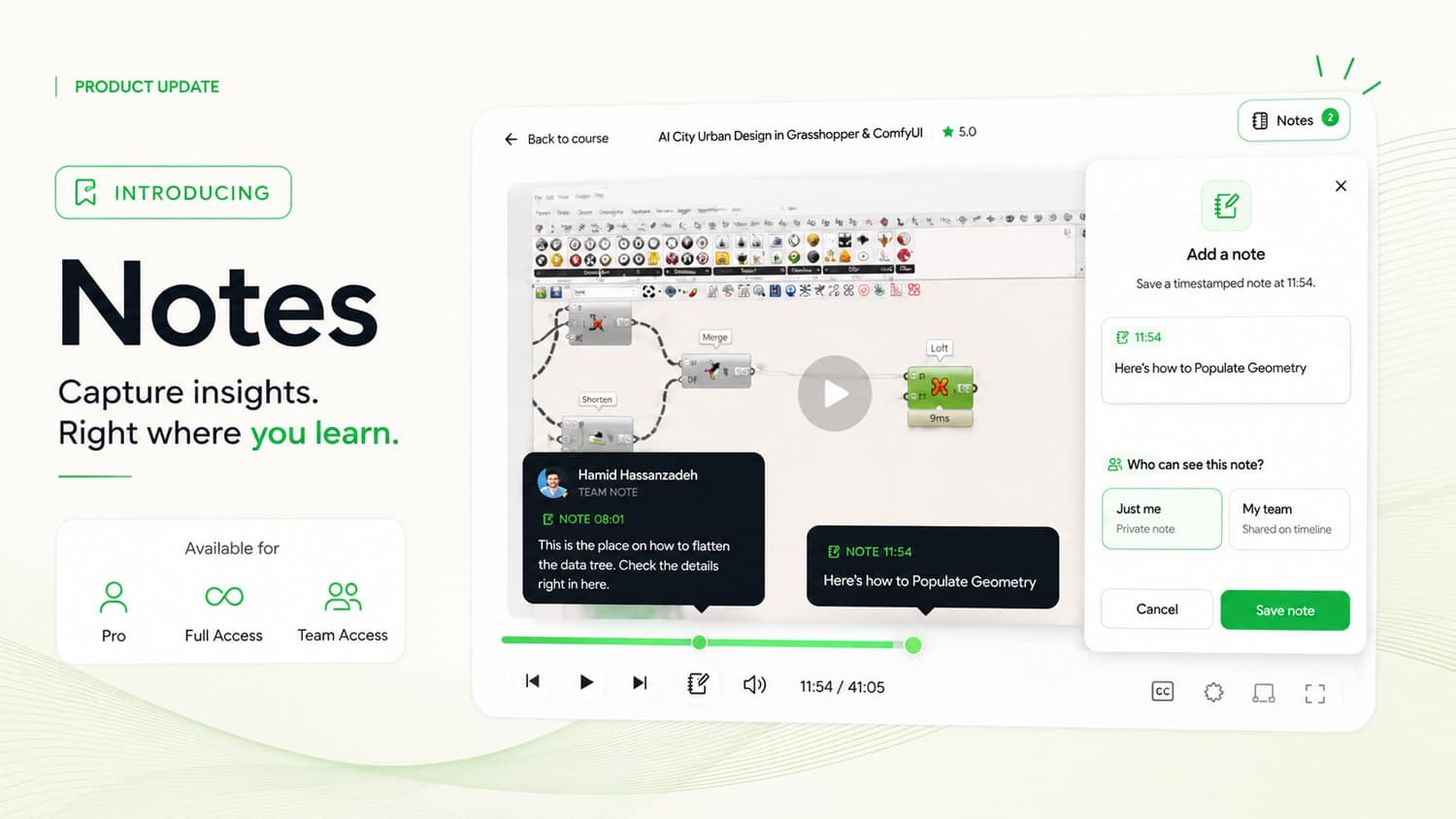
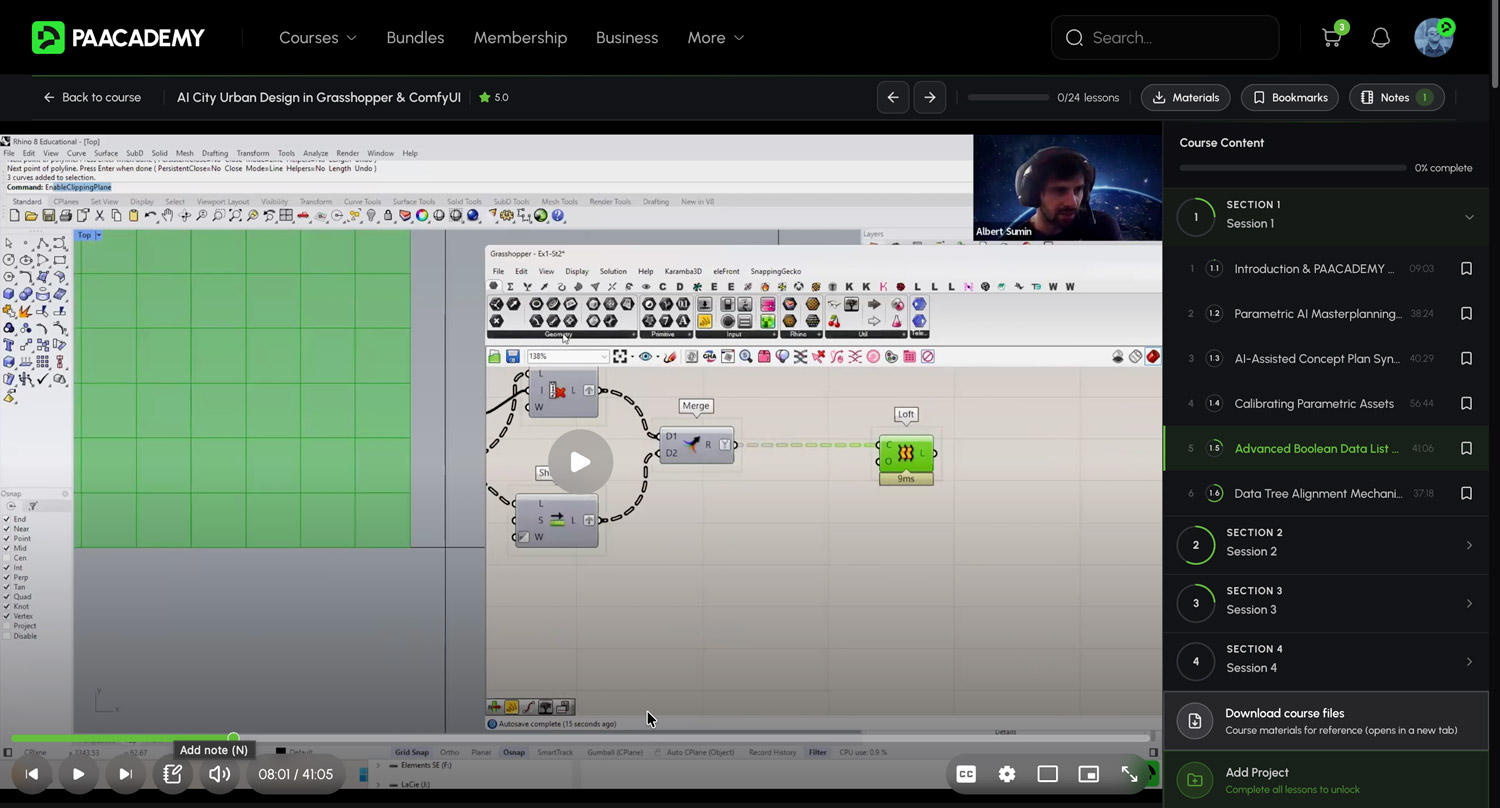
The Notes feature allows learners to create timestamped notes directly inside course videos, making it easier to capture insights, organize knowledge, and revisit important lessons whenever needed.
Learn Without Losing Important Details
Online learning is most effective when ideas can be captured the moment they appear.
With Notes, learners can pause a lesson, create a note linked to a specific timestamp, and continue learning without interrupting their workflow.
Whether you’re following a computational design workflow, learning AI tools, exploring BIM methodologies, or studying architectural visualization techniques, Notes helps you build your own personalized learning archive directly inside PAACADEMY.
How Notes Work
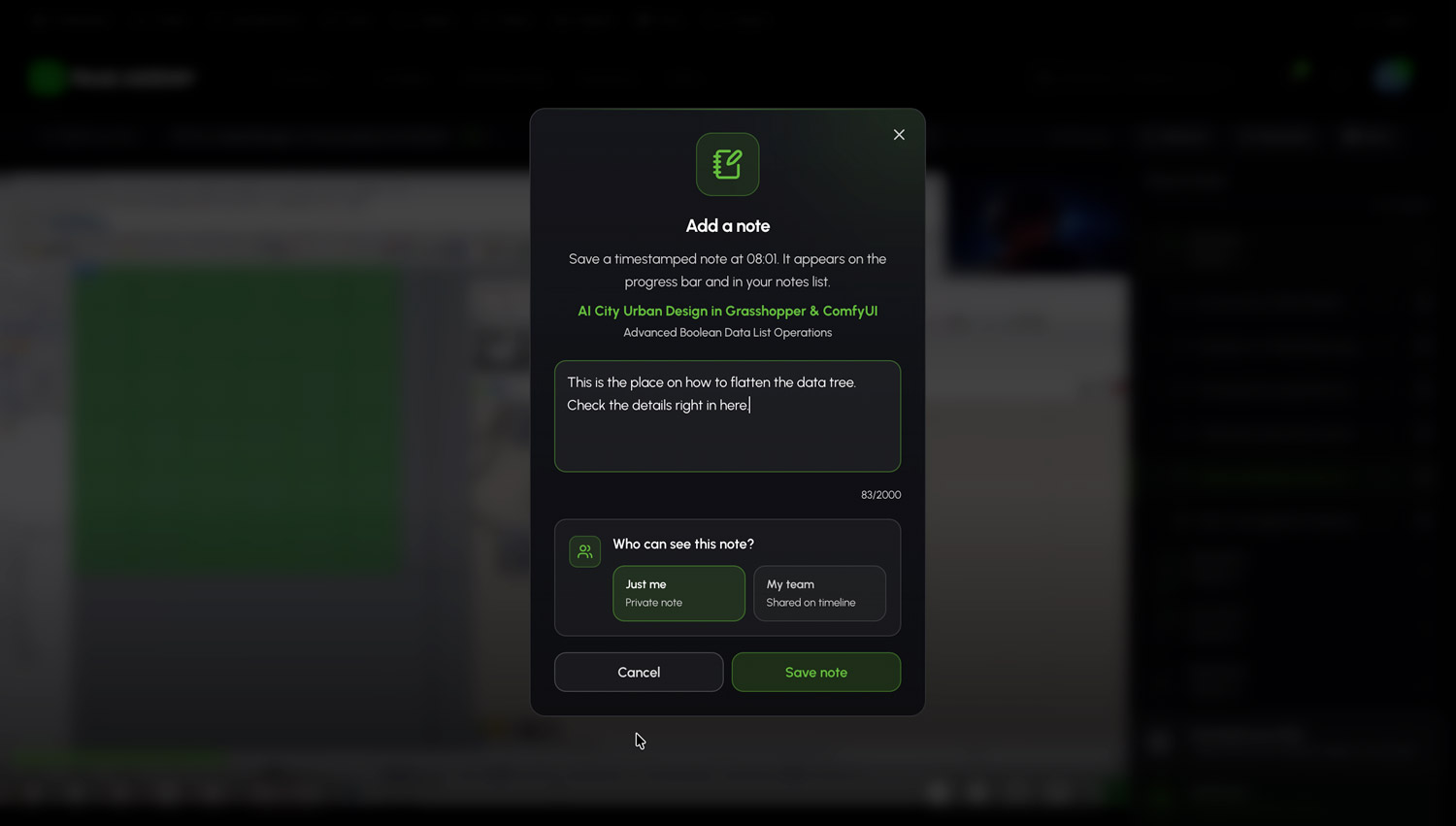
While watching any eligible lesson, simply click the Notes button inside the video player.
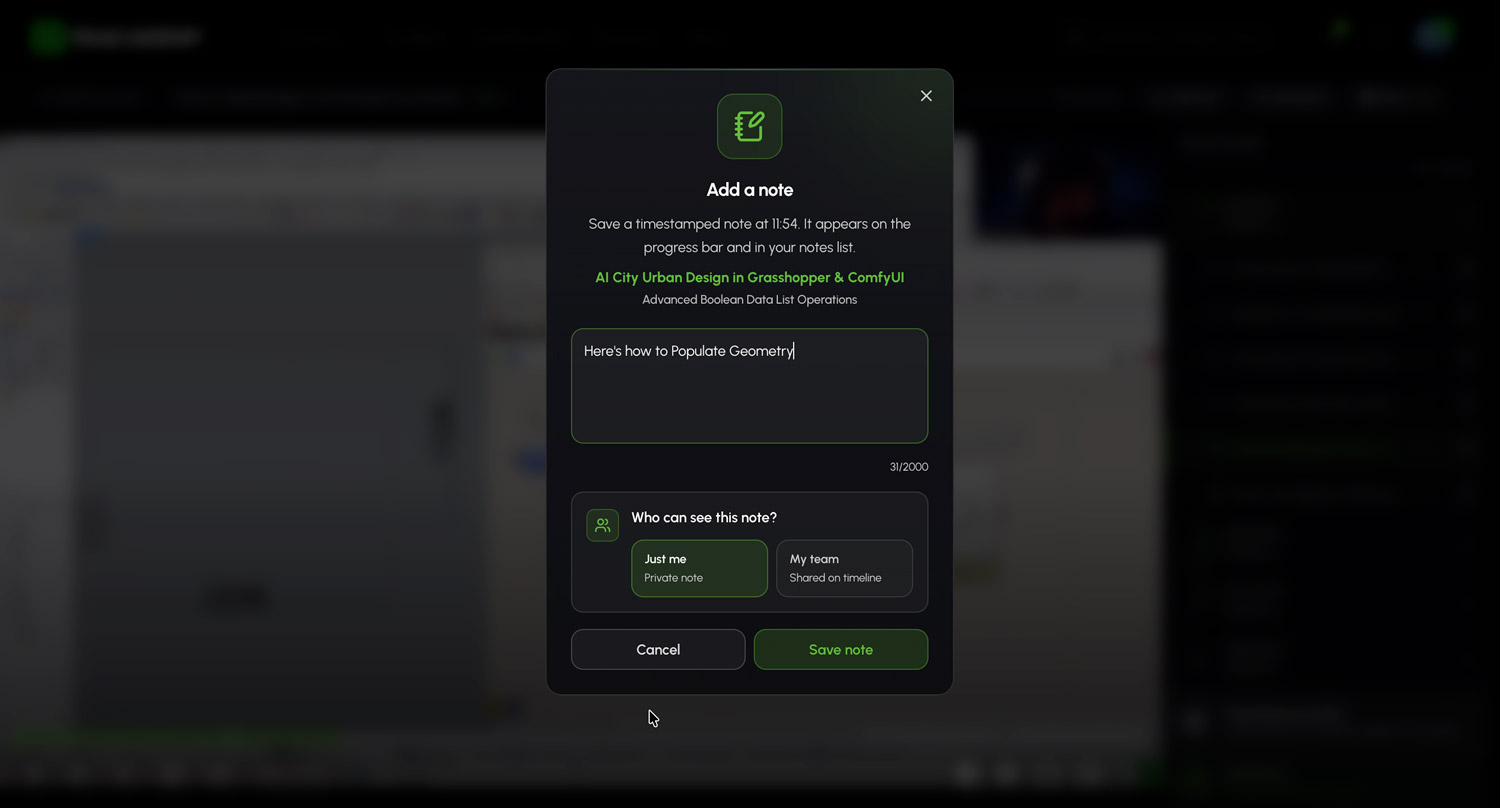
A note window will appear, automatically linking your note to the exact moment in the lesson.
You can:
- Create timestamped notes while watching videos
- Save personal learning reminders
- Record workflow explanations and technical details
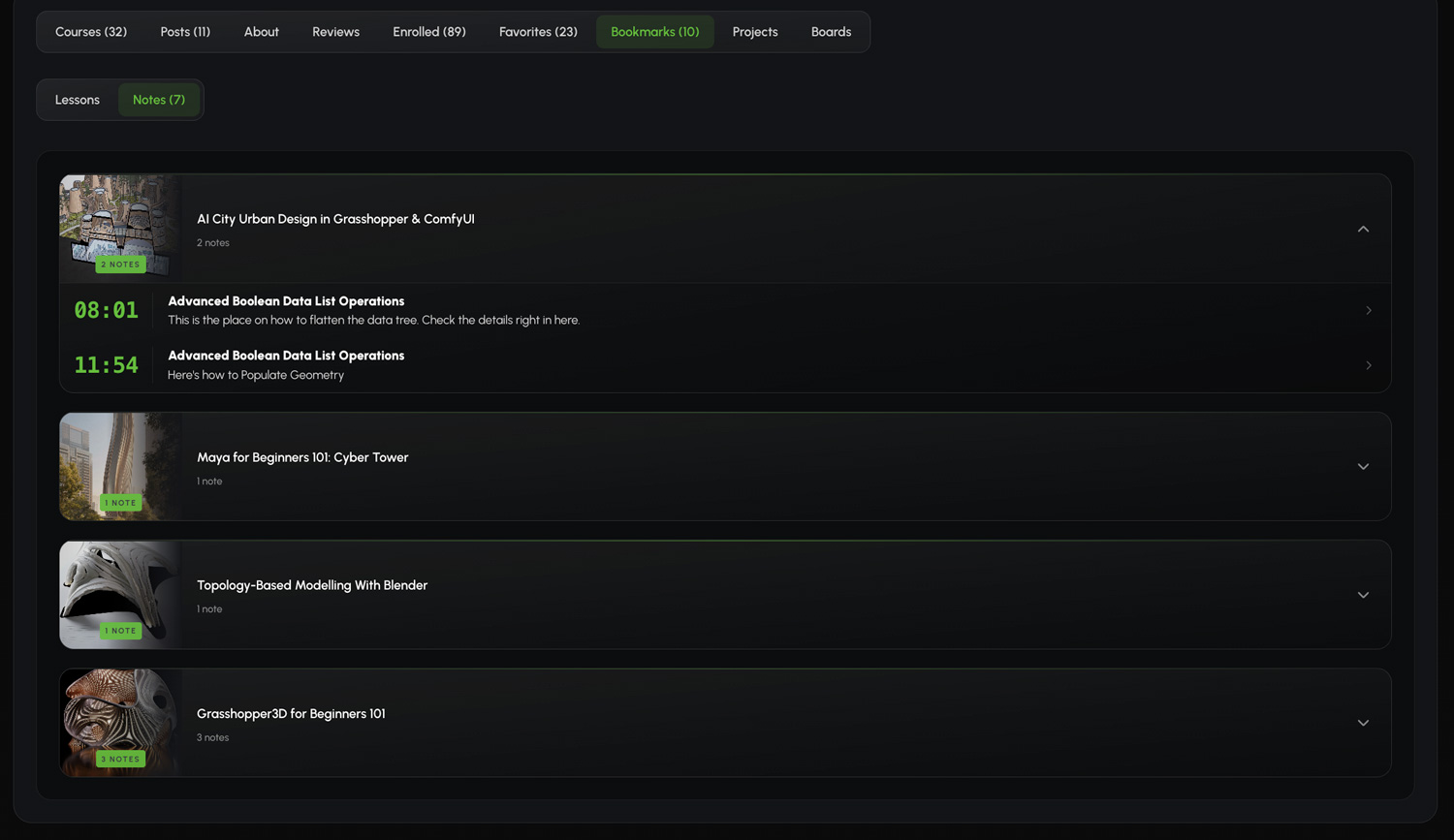
- Organize important insights for future reference
- Quickly return to the exact point where the note was created
Each note is permanently connected to the lesson timestamp, allowing you to revisit key concepts without manually searching through hours of content.
Team Collaboration for Organizations
For Team Access members, Notes becomes more than a personal productivity tool.
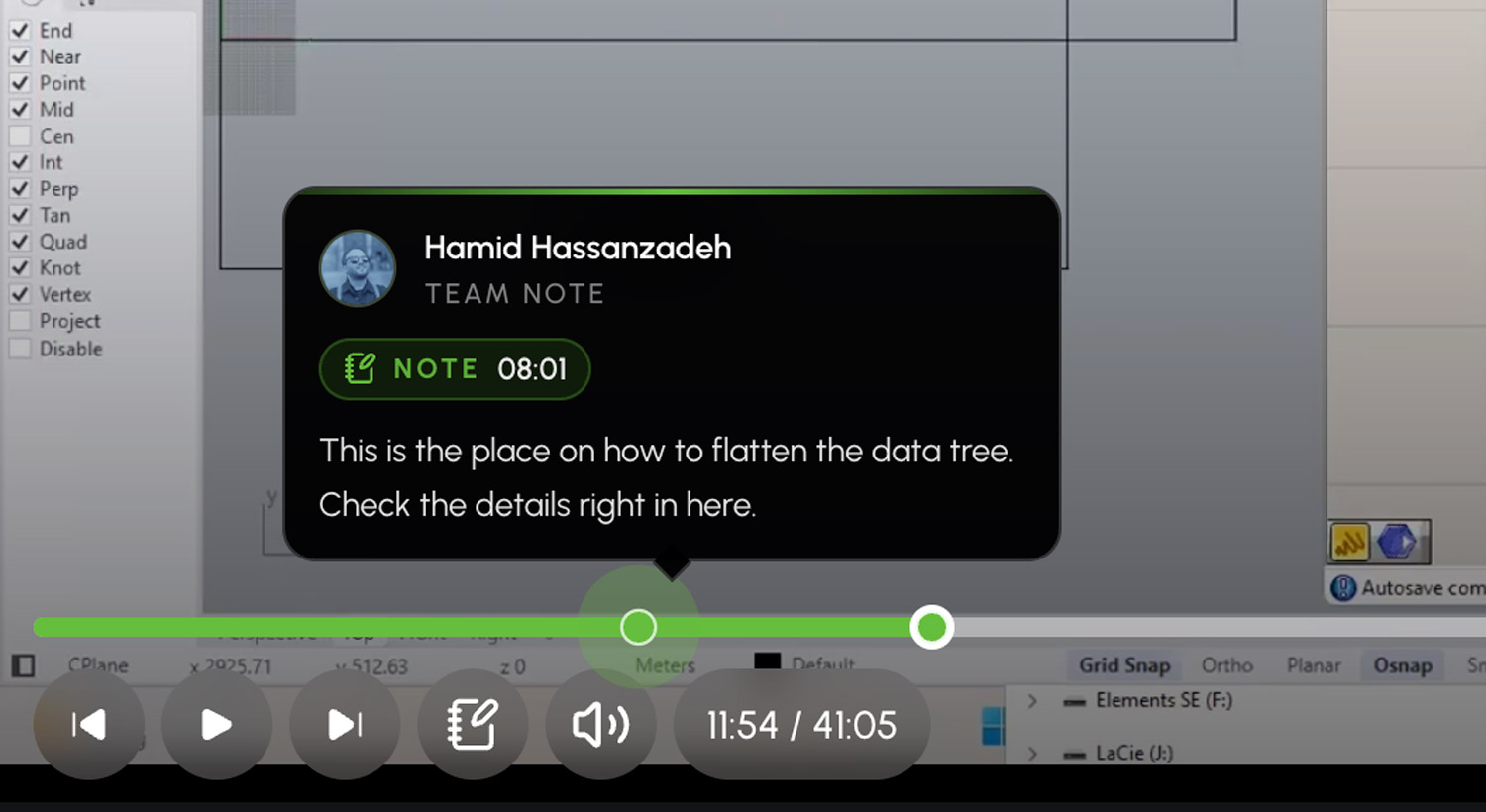
Users can choose whether a note remains private or is shared with their team.
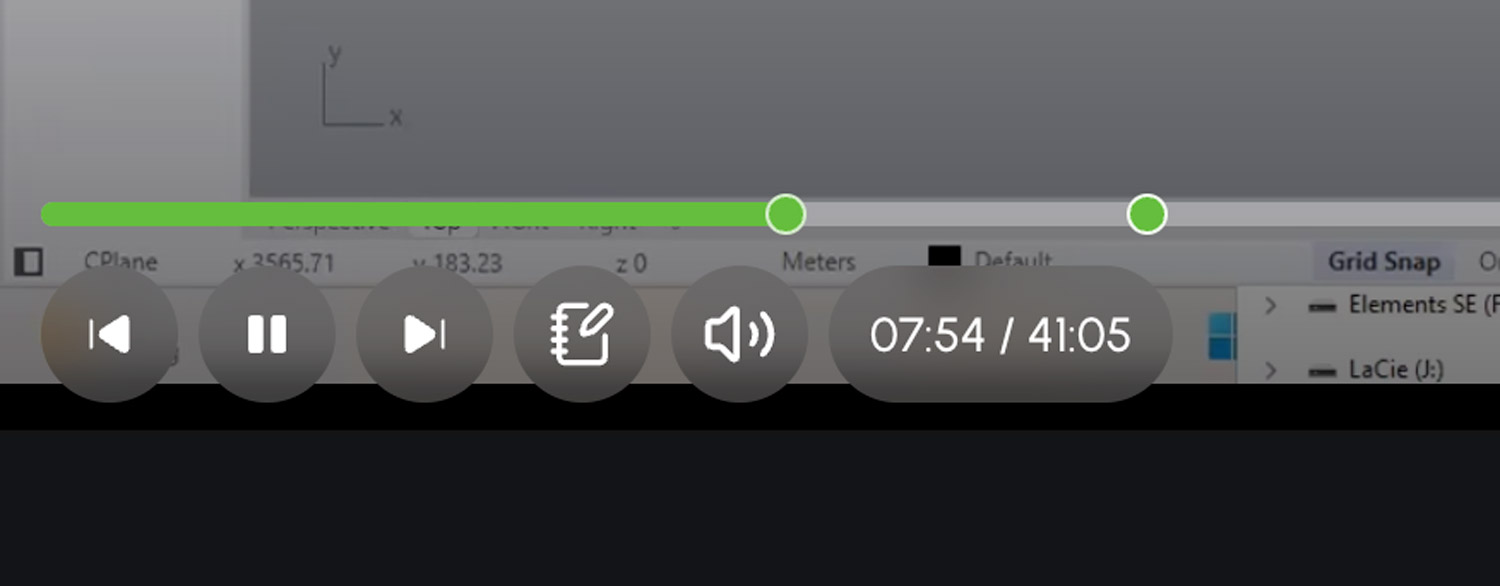
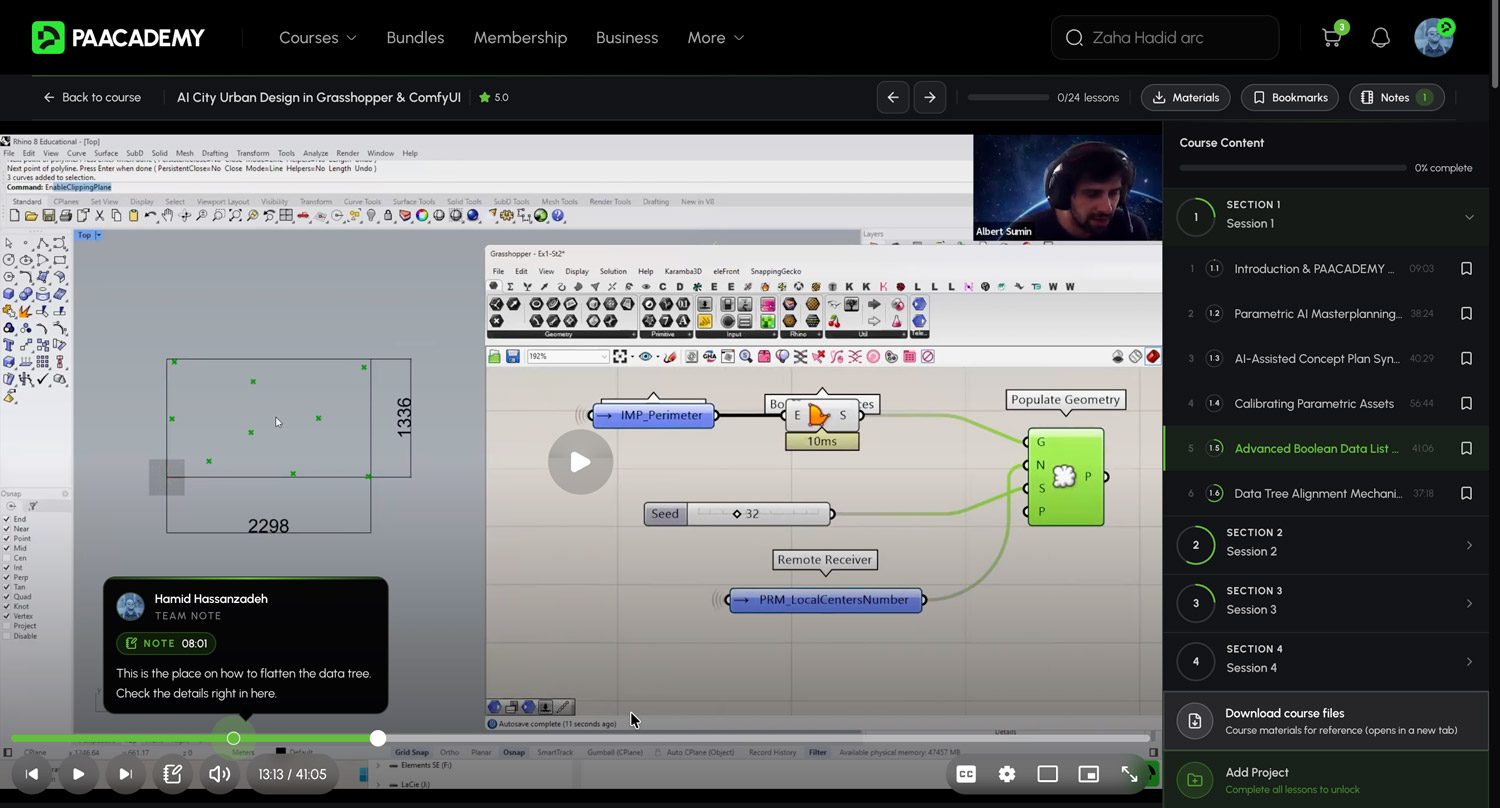
Shared notes appear directly on the lesson timeline, helping teams capture knowledge collectively and create a collaborative learning environment.
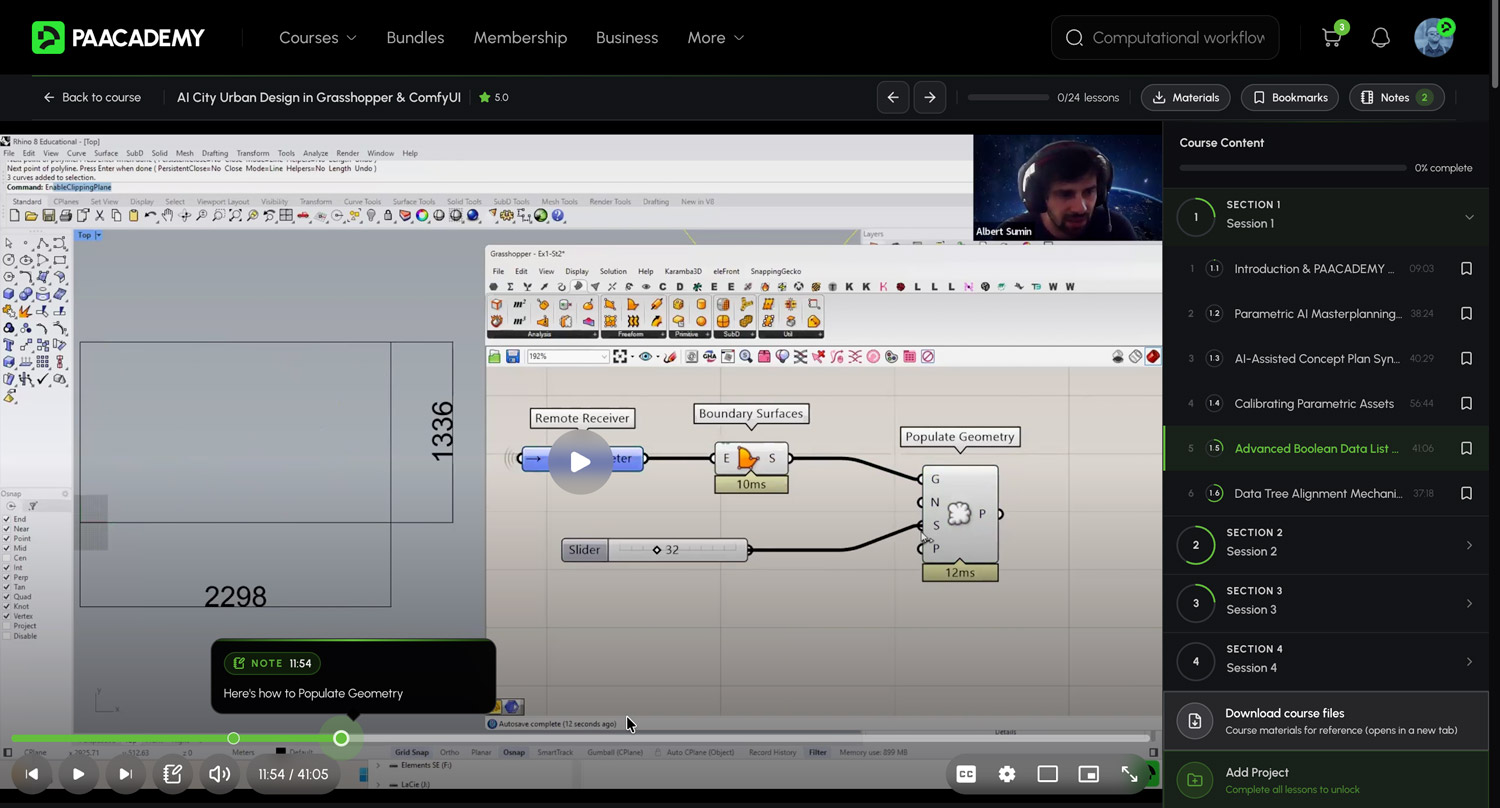
This functionality is especially valuable for architecture firms, design studios, engineering companies, and educational institutions using PAACADEMY Team Access for professional development.
Examples include:
- Sharing workflow tips with team members
- Highlighting important project methodologies
- Creating internal learning references
- Building collective knowledge around specific courses
By turning individual observations into shared learning resources, teams can improve knowledge transfer and training efficiency.
Visual Timeline Indicators
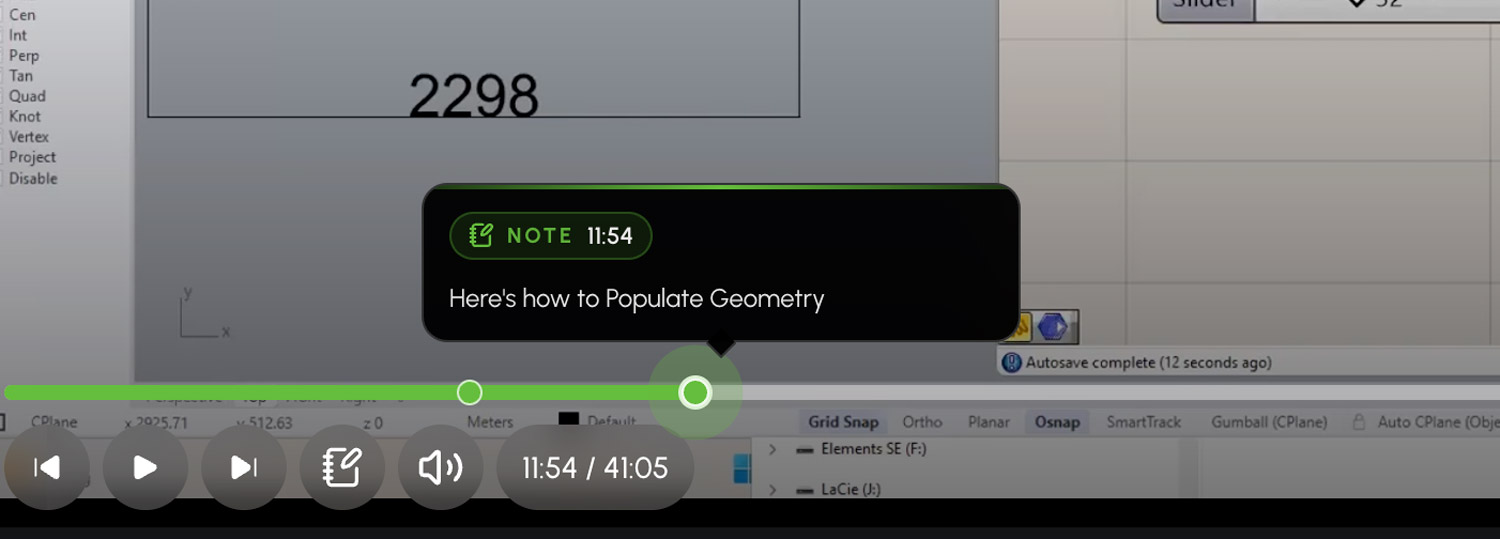
Every note is represented visually on the lesson timeline.
When reviewing a lesson, learners can instantly identify important moments and jump directly to the corresponding section of the video.
This transforms long-form educational content into a more searchable and personalized learning experience.
Instead of wondering where a specific explanation appeared, Notes provides direct access to the exact moment where the insight was captured.
Built for Professional Learning
PAACADEMY courses often contain highly technical workflows, advanced software demonstrations, and industry-specific methodologies.
From Grasshopper and Rhino workflows to AI-driven design processes, many lessons include valuable details that learners may want to revisit later.
The Notes feature was designed to support this style of professional education by helping learners document, organize, and retain knowledge more effectively.
Available Now
The Notes feature is now available to all:
- PAACADEMY Pro Members
- PAACADEMY Full Access Members
- PAACADEMY Team Access Members
We believe learning should be active, organized, and collaborative. Notes is another step toward building a more powerful educational platform for architects, designers, engineers, and creative professionals worldwide.
We look forward to seeing how our community uses Notes to capture ideas, build knowledge, and learn more effectively.



.jpg&w=3840&q=75)